SCIM: Automate user provisioning with Azure AD
This topic provides the instructions that you need to follow in KACE Cloud and Microsoft Azure Active Directory (AD) to automatically provision and de-provision users and groups to KACE Cloud. For important details on what the MS Azure AD provisioning service does, how it works, and frequently asked questions, see Automate user provisioning and deprovisioning to SaaS applications with Azure Active Directory.
The scenario outlined in this tutorial needs the following prerequisites:
- An Azure AD tenant
- A KACE Cloud tenant
- A user account in a KACE Cloud tenant with a System Admin role
|
|
TIP: Assign a single Azure AD user to KACE Cloud to test the automatic user provisioning configuration. You can assign additional users and groups later, as required. |
To automate user provisioning with Azure AD:
- Set up KACE Cloud for user provisioning.
- Sign in to KACE Cloud.
- SSO users imported through LDAP Sync only. Disable the default password for users.
- On the Settings tab, navigate to KACE Cloud > Settings.
- On the KACE Cloud Settings page, in the Users section, ensure the Use a default user password for users imported via LDAP Sync check box is cleared.
- On the KACE Cloud Settings page, click Save.
For more information about this page, see Explore KACE Cloud Settings.
- Enable user provisioning using SCIM in KACE Cloud.
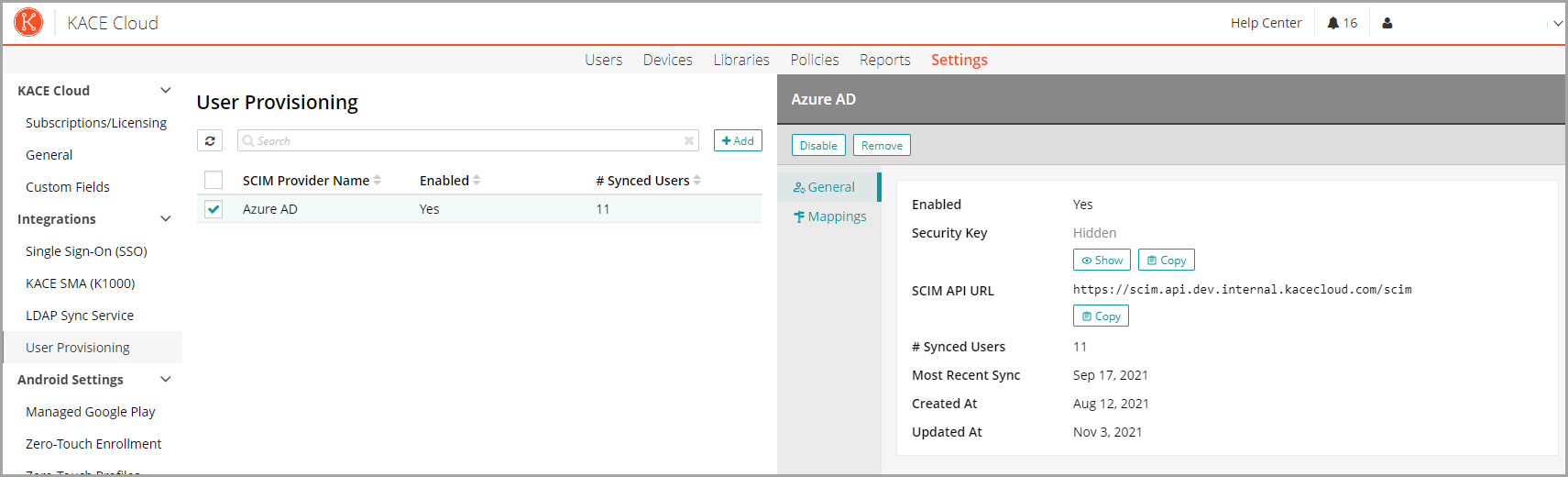
- On the Settings tab, navigate to Integrations > User Provisioning.
- Create a new SCIM provider for your Azure AD tenant.
- On the User Provisioning page, click Add.
- Type a provider name. For example: AzureAD.
- Select the Enabled check box to enable SCIM user provisioning from Azure AD.

TIP: You must do that now so that a security key required by Azure AD is generated.
- Click Save.
- Copy the contents of the SCIM Service URL and Security Key fields for later use.
This information is required for the Azure AD Enterprise application.
- On the Settings tab, navigate to Integrations > User Provisioning.
- Configure user attribute-mappings in KACE Cloud.
- After creating the new SCIM provider, use the Mappings tab of the newly created SCIM provider to manage the user attribute-mappings between various SCIM user schema attributes and the KACE Cloud user fields. When creating a new mapping, you can do any of the following:
- Select a SCIM user schema attribute from the supported builtin SCIM 2.0 enterprise user schema attribute.
- Define a custom SCIM user extension attribute, and the select a built-in KACE Cloud user attribute.
- Define a KACE Cloud custom user field to map it to.
- If there are other user attribute values you want to map from SCIM for their KACE Cloud users, you can first define the custom KACE Cloud user fields on the KACE Cloud > Custom Fields page in the Users tab, and then return to this attribute mappings page to map the desired SCIM attribute to them.
Here are some commonly suggested mappings that require you to first create the specified custom KACE Cloud user field on the the Custom Fields page, in the Users tab.
SCIM attribute
KACE Cloud user field
KACE Cloud field type
Notes
urn:ietf:params:scim:schemas:extension:enterprise:2.0:User:manager.value
Manager
custom
urn:ietf:params:scim:schemas:extension:enterprise:2.0:User:department
Department
custom
urn:ietf:params:scim:schemas:extension:enterprise:2.0:User:organization
Organization
custom
phoneNumbers[type eq \"mobile\"].value
Mobile
custom
urn:ietf:params:scim:schemas:extension:enterprise:2.0:Group:externalId
Groups
custom
This populates the named custom KACE Cloud user attribute with a comma delimited of group IDs which Azure AD reports that the user belongs to. This is dependent upon user group provisioning being enabled in Azure AD, as well as the customer having an Azure AD tenant edition which supports this (not supported in the free edition of Azure AD).
- While KACE Cloud does support a majority of the builtin SCIM user and enterprise user schema attributes, if there are other types of data from Azure AD that do not correspond well to the SCIM user attributes supported by KACE Cloud, the admin can first define custom SCIM extension user attributes on the Settings >Custom Fields page in the SCIM User Schema Custom Extension Attributes section and then return to the Mappings tab to use them in a user attribute-mapping.
You must follow these rules for creating a custom SCIM user schema attribute:
- There are two parts to specifying a custom SCIM user attribute:
- The first part is the name of the custom SCIM extension the admin wants to use, such as urn:ietf:params:scim:schemas:extension:CustomExtensionName:2.0:User.
- The second part is the name of the custom attribute the admin wants to create, such as sAMAccountName.
- When creating the new custom attribute, the name of the attribute that you provide must be specified using the custom extension name followed by a colon ':' and then the custom attribute name. For example:
urn:ietf:params:scim:schemas:extension:CustomExtensionName:2.0:User:sAMAccountName
Where:
urn:ietf:params:scim:schemas:extension:CustomExtensionName:2.0:User is the custom namespace.
sAMAccountName is the attribute name.
NOTE: The same custom extension name portion of the attribute name can be used as part of any/all of their custom SCIM user schema attributes, if required.
- The namespace must start with urn:ietf:params:scim:schemas:extension:, but cannot start with the standard SCIM user schema namespace which is urn:ietf:params:scim:schemas:extension:enterprise:2.0:User.
- A suggested SCIM user namespace to use is urn:ietf:params:scim:schemas:extension:CustomExtensionName:2.0:User, since it indicates that this is a custom user extension and does not conflict with urn:ietf:params:scim:schemas:extension:enterprise:2.0:User.
- There are two parts to specifying a custom SCIM user attribute:
- When you finish configuring user attribute-mappings between SCIM user schema attributes and KACE Cloud user attributes, save your changes.
To add or edit a mapping, on the Mappings tab, click Edit Mappings, and make your changes, as required.
When you configure a new SCIM provider, several required attribute-mappings are automatically set up. These mappings are required and cannot be modified or removed. You can create additional mappings from both supported built-in and custom SCIM user schema attributes to built-in and custom KACE Cloud user fields. The pre-populated required system managed read-only mappings are as follows:
SCIM attribute KACE Cloud user field KACE Cloud field type Notes userName Email builtin name.formatted Name built-in id HeliumKeycloakObjectGuid built-in The HeliumKeycloakObjectGuid is an internally used identifier that is not displayed on the user details page. active Disabled The value of the active SCIM attribute is reversed when it is mapped into the built-in KACE Cloud user field named Disabled. For example, if the SCIM active attribute has a value of true, the Disabled built-in KACE Cloud user attribute has a value of false. Other built-in KACE Cloud user fields that are commonly mapped to from SCIM attributes are Address, City, State, Zip and Country. Here are the suggested mappings for those fields and several other commonly used user attributes:
SCIM attribute
KACE Cloud user field
KACE Cloud field type
addresses[type eq \"work\"].streetAddress
Address
built-in
addresses[type eq \"work\"].locality
City
built-in
addresses[type eq \"work\"].region
State
built-in
addresses[type eq \"work\"].postalCode
Zip
built-in
addresses[type eq \"work\"].country
Country
built-in
- After creating the new SCIM provider, use the Mappings tab of the newly created SCIM provider to manage the user attribute-mappings between various SCIM user schema attributes and the KACE Cloud user fields. When creating a new mapping, you can do any of the following:
- Set up Azure AD tenant Enterprise application for KACE Cloud user provisioning.
NOTE: If SAML-based SSO is already configured between Azure AD and KACE Cloud using a custom enterprise application entry in Azure AD, the same Azure AD enterprise application entry being used for SSO can also be configured for SCIM user provisioning instead of creating a new enterprise application entry. If that is the case, open that enterprise application in Azure AD, then proceed to step 2e.
- Sign in to the AAD portal.
TIP: you can get access a free trial for Azure Active Directory with P2 licenses by signing up for the developer program.
- In the left pane, select Enterprise applications. A list of all configured apps is displayed, including any apps added from the gallery.
- Select New application > Create your own application.
- Enter a name for your application, for example KACE Cloud, then choose the option integrate any other application you don't find in the gallery and select Add to create an app object.
The new app is added to the list of enterprise applications and opens to its app management screen.
- In the app management screen, in the left panel, select Provisioning, then Get started.
- On the Provisioning page, configure the following options:
- Provisioning Mode: Select Automatic
- Admin Credentials:
- Tenant URL: Type the SCIM service URL that you recorded in step 1. For example: https://scim.api.kacecloud.com/scim.
- Secret Token: Type the security key that you also recorded in step 1.
Click Test Connection to have Azure Active Directory connect to the SCIM endpoint. If the attempts to connect to the application succeed, click Save to save the administrative credentials.
- Mappings: This section contains two selectable sets of attribute mappings: one for user objects and one for group objects. Select each one to review the attributes that are synchronized from Azure Active Directory to your app. The attributes selected as matching properties are used to match the users and groups in your KACE Cloud tenant for update operations. Use the guidelines below for configuring the mappings.
- Provision Azure Active Directory Users: Select to configure user attribute mappings.
- Required attribute-mappings: Ensure that the following user mappings are configured as specified. Some might be there by default, others need to be either added or modified to match the details below.
TIP: The customappsso Attribute column contains the SCIM user schema attribute.
Azure Active Directory Attribute customappsso Attribute Matching precedence Notes Join(" ", [givenName], [surname]) name.formatted This is the user's full name (first and last names). Mapping the Azure AD displayName to the name.formatted SCIM user attribute might also work depending on if your organization populates the Azure AD displayName attribute with the user's first and last names. objectId externalId This is the user's unique user ID inside of the Azure AD directory. The valid Azure AD attribute should be objectId and not mailNickname (which is the default). Switch([IsSoftDeleted], , "False", "True", "True", "False") active userPrincipalName userName 1 The value mapped to the SCIM userName field must be the user's email address and this must be unique within the directory (no two users can have the same userName). If the Azure AD attribute named userPrincipalName does not contain a user's email address, then another Azure AD attribute must be selected, such as mail. - Suggested optional mappings: Here are the suggested optional mappings that you can use with the existing built-in Azure AD and SCIM user attributes:
Azure Active Directory Attribute customappsso Attribute (SCIM user schema attribute) streetAddress addresses[type eq "work"].streetAddress city addresses[type eq "work"].local state addresses[type eq "work"].region postalCode addresses[type eq "work"].postalCode country addresses[type eq "work"].country manager urn:ietf:params:scim:schemas:extension:enterprise:2.0:User:manager department urn:ietf:params:scim:schemas:extension:enterprise:2.0:User:department mobile phoneNumbers[type eq \"mobile\"].value employeeId urn:ietf:params:scim:schemas:extension:enterprise:2.0:User:employeeNumber - Custom SCIM user schema extension attributes not listed in Azure AD: If you need to use a custom SCIM user schema extension attribute which you defined for a mapping in KACE Cloud, the attribute must also be defined in Azure AD and then added to an Azure AD to SCIM user attribute-mapping.
To define a custom SCIM user schema extension attribute in Azure AD:
- Select Show advanced options and then click Edit attribute list for custom customappsso.
- Enter the full name of the custom SCIM user schema attribute name which as defined in KACE Cloud in the empty Name field at the bottom of the list, for example: urn:ietf:params:scim:schemas:extension:CustomExtensionName:2.0:User:sAMAccountName
- Select String for Type.
- Leave the other fields unmodified.
- Click Save at the top of the page.
The new custom SCIM user schema extension attribute is available for selection.
- Required attribute-mappings: Ensure that the following user mappings are configured as specified. Some might be there by default, others need to be either added or modified to match the details below.
- Provision Azure Active Directory Groups: Select to configure group attribute mappings.
- Required attribute-mappings for user group membership syncing: If you want to synchronize user group membership with KACE Cloud, there are several Azure AD group attribute-mappings which must be configured. Also, in order to support user group membership with KACE Cloud, Azure AD requires that the customer have an Azure AD edition that supports this, which is not supported in the free edition.
If user group membership is being sync'd to KACE Cloud, the Azure AD objectId values for the groups a user belongs to ultimately ends up in a comma delimited list in what ever KACE Cloud customer user attribute the urn:ietf:params:scim:schemas:extension:enterprise:2.0:Group:externalId SCIM group attribute is mapped to (see above details in the section on configuring attribute-mappings in KACE Cloud).
If user group membership is being sync'd to KACE Cloud, the Azure AD objectId values for the groups a user belongs to will ultimately end up in a comma delimited list in what ever KACE Cloud customer user attribute the urn:ietf:params:scim:schemas:extension:enterprise:2.0:Group:externalId SCIM group attribute is mapped to (see above details in the section on configuring attribute-mappings in KACE Cloud.
Azure Active Directory Attribute customappsso Attribute (SCIM user schema attribute) Matching precedence displayName displayName 1 objectId externalId members members If you do not want to sync group membership syncing, or do not have an appropriate Azure AD license for it, set Enabled to No.
Click Save to commit any group attribute mapping changes.
- Required attribute-mappings for user group membership syncing: If you want to synchronize user group membership with KACE Cloud, there are several Azure AD group attribute-mappings which must be configured. Also, in order to support user group membership with KACE Cloud, Azure AD requires that the customer have an Azure AD edition that supports this, which is not supported in the free edition.
- Provision Azure Active Directory Users: Select to configure user attribute mappings.
- Settings:
- Scope: This field defines which users and groups are synchronized. Select Sync only assigned users and groups (recommended) to only sync users and groups assigned on the Users and groups tab.
- Sync only assigned users and groups (recommended): Select to only sync users and groups assigned on the Users and groups tab.
- When your configuration is complete, set the Provisioning Status to On.
- Click Save to start the Azure AD provisioning service.
- If syncing only assigned users and groups (recommended), select the Users and groups tab of this Enterprise application and assign the users or groups that you want to sync.
- Sign in to the AAD portal.
- Monitor the user provisioning service status of the Azure AD Enterprise application setup for KACE Cloud.
When you have configured provisioning inside of Azure AD, use the following resources to monitor your deployment:
- Use the provisioning logs to determine which users have been provisioned successfully or unsuccessfully
- Check the progress bar to see the status of the provisioning cycle and how close it is to completion
- If the provisioning configuration seems to be in an unhealthy state, the application will go into quarantine. Learn more about quarantine states here.
- Monitor the status of the KACE Cloud SCIM user provisioning service.
In KACE Cloud, navigate to Settings > Integrations > SCIM User Provisioning and select the configured SCIM provider.
The details pane displays the following information:
- Provider Name: The name assigned to this SCIM provider when it was created.
- Enabled: Indicates if the SCIM user provisioning service is enabled for this provider. When disabled, KACE Cloud ignores any SCIM processing requests from the SCIM provider.
NOTE: If this setting is disabled, and then re-enabled, a new Security Key is generated, and you must update the corresponding Azure AD Enterprise application provisioning configuration with this new security key value.
- Security Key: The security key value needed by the corresponding Azure AD Enterprise application.
NOTE: This value should be kept secret. If this value it is ever compromised, a new secret key can be generated, invalidating the old security key value. See the above note about the Enabled setting.
- SCIM API URL: The value required for the Tenant URL field when setting up provisioning on the Azure AD Enterprise application.
- # Synced Users: The number of users which are synchronized by the SCIM provider.
- Most Recent Sync: The date and time of the last successful synchronization activity from by SCIM provider.